

Licensing contracts
How to create, review, edit and sign the licensing contract between you and each agency.
The licensing contract is the contract between you and an agency under your license. You create, review and sign it in the dashboard. Once you sign, the agency receives the link to sign too.
Before you start: legal details
Section titled “Before you start: legal details”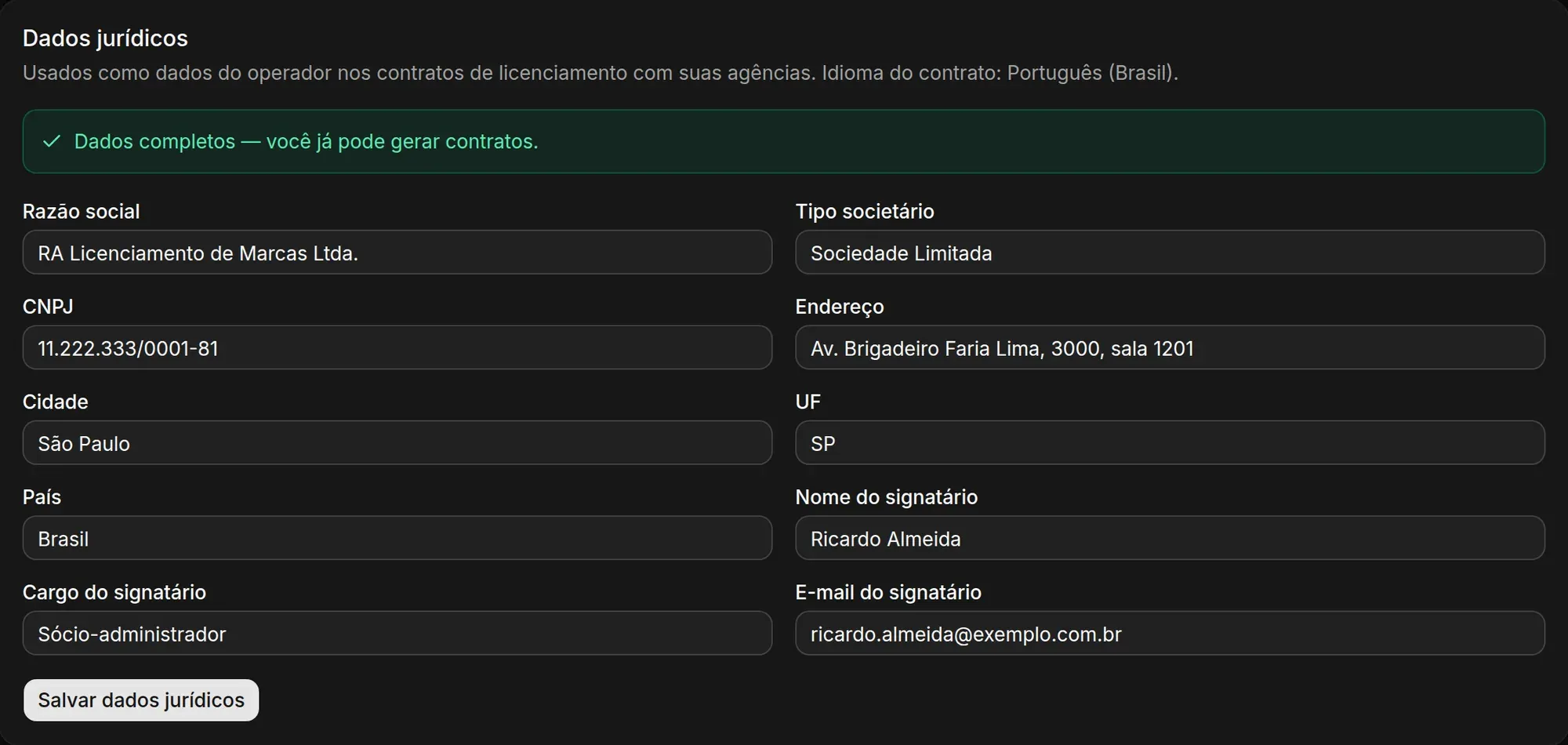
To create contracts, your legal details must be complete. They go into the contract as the operator’s details.
-
In the menu, open Settings.
-
On the Legal details card, fill in the fields marked Pending.
-
Click Save legal details.
When everything is filled in, the card shows Details complete. You can now create contracts.
Create a contract
Section titled “Create a contract”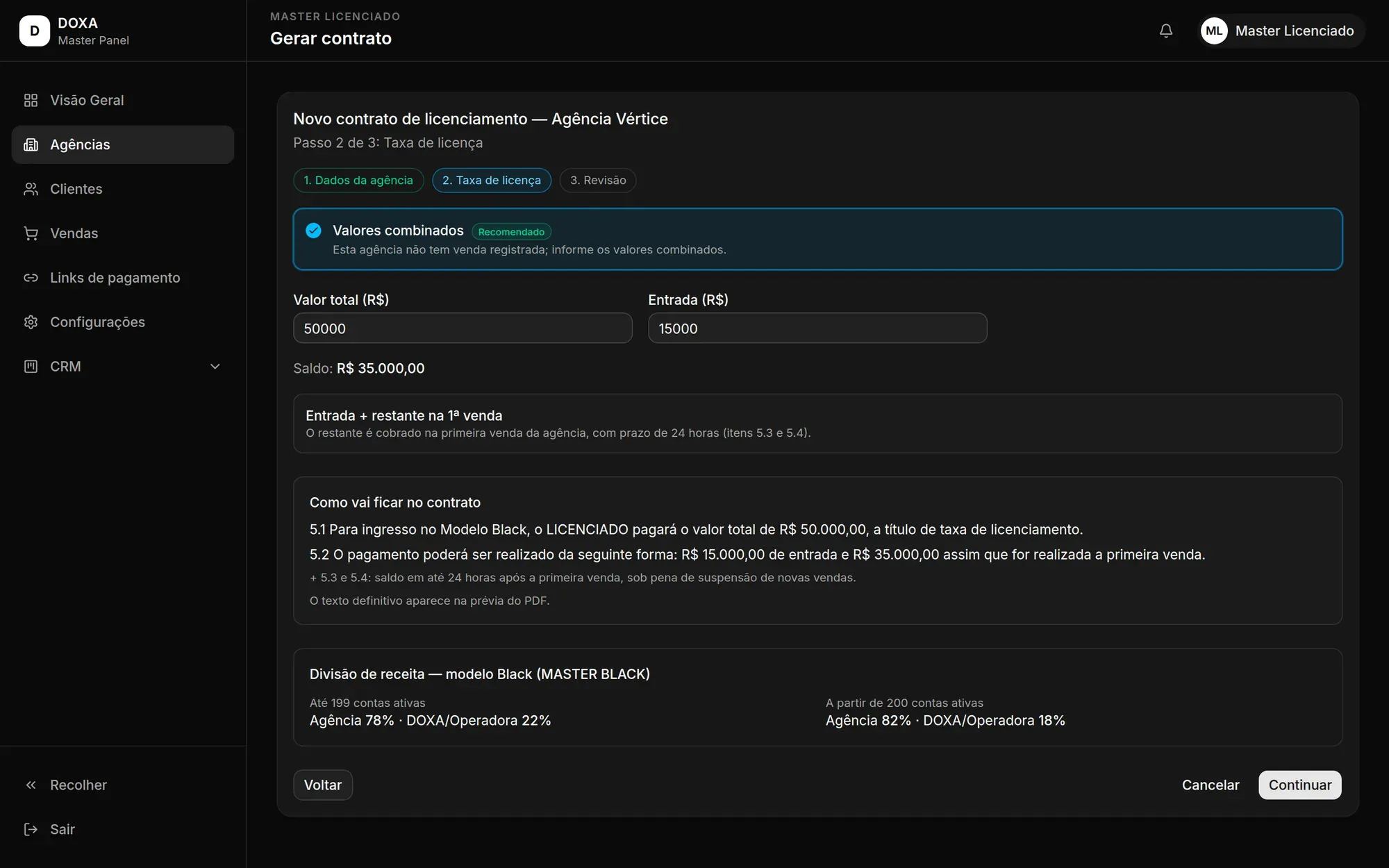
You can start from the Agencies screen, by clicking Create contract on the agency’s row, or from the agency’s page, on the Licensing contract card.
-
Agency details: check and complete the agency’s and the signer’s details. The Signer email is where the signing link goes.
-
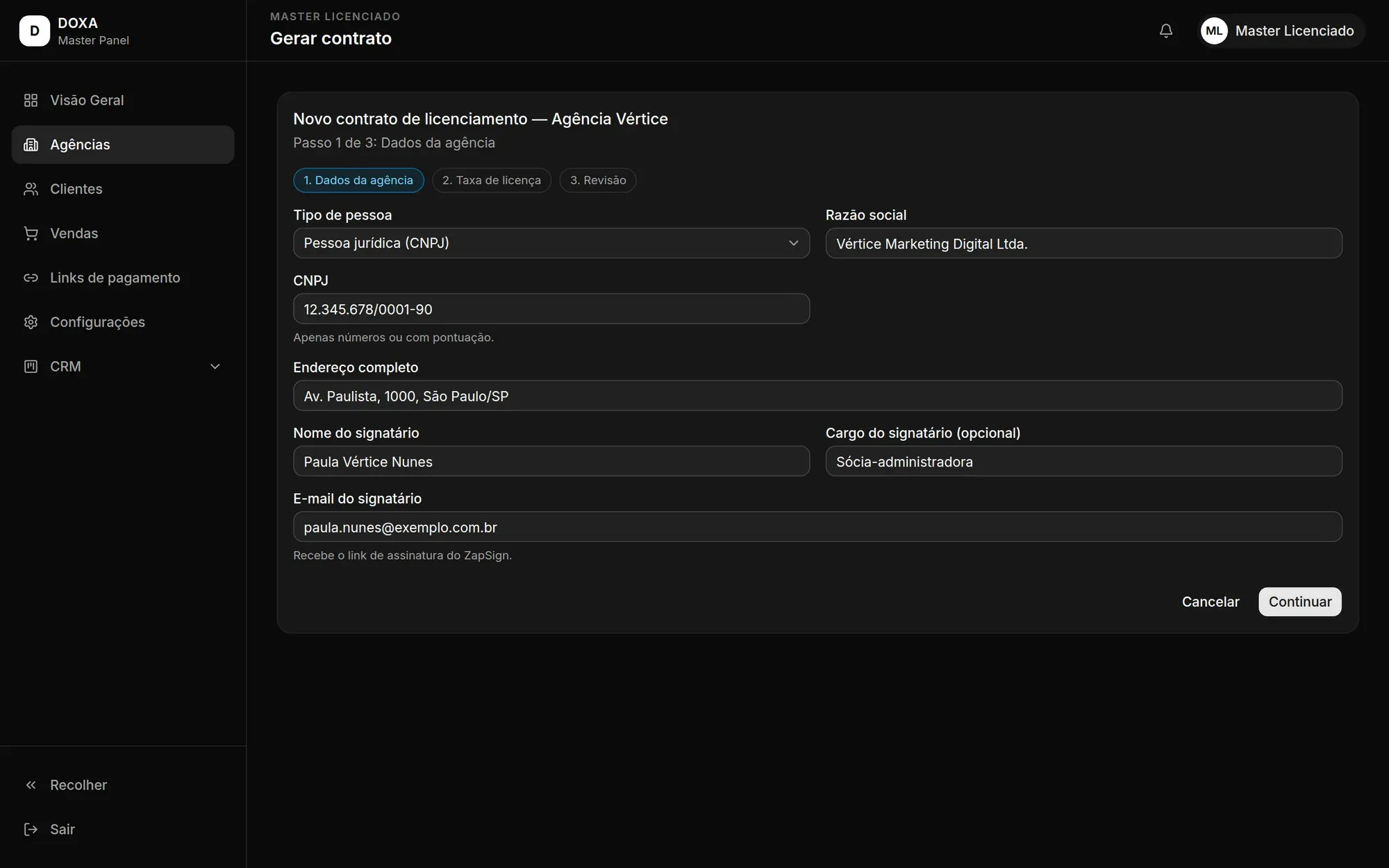
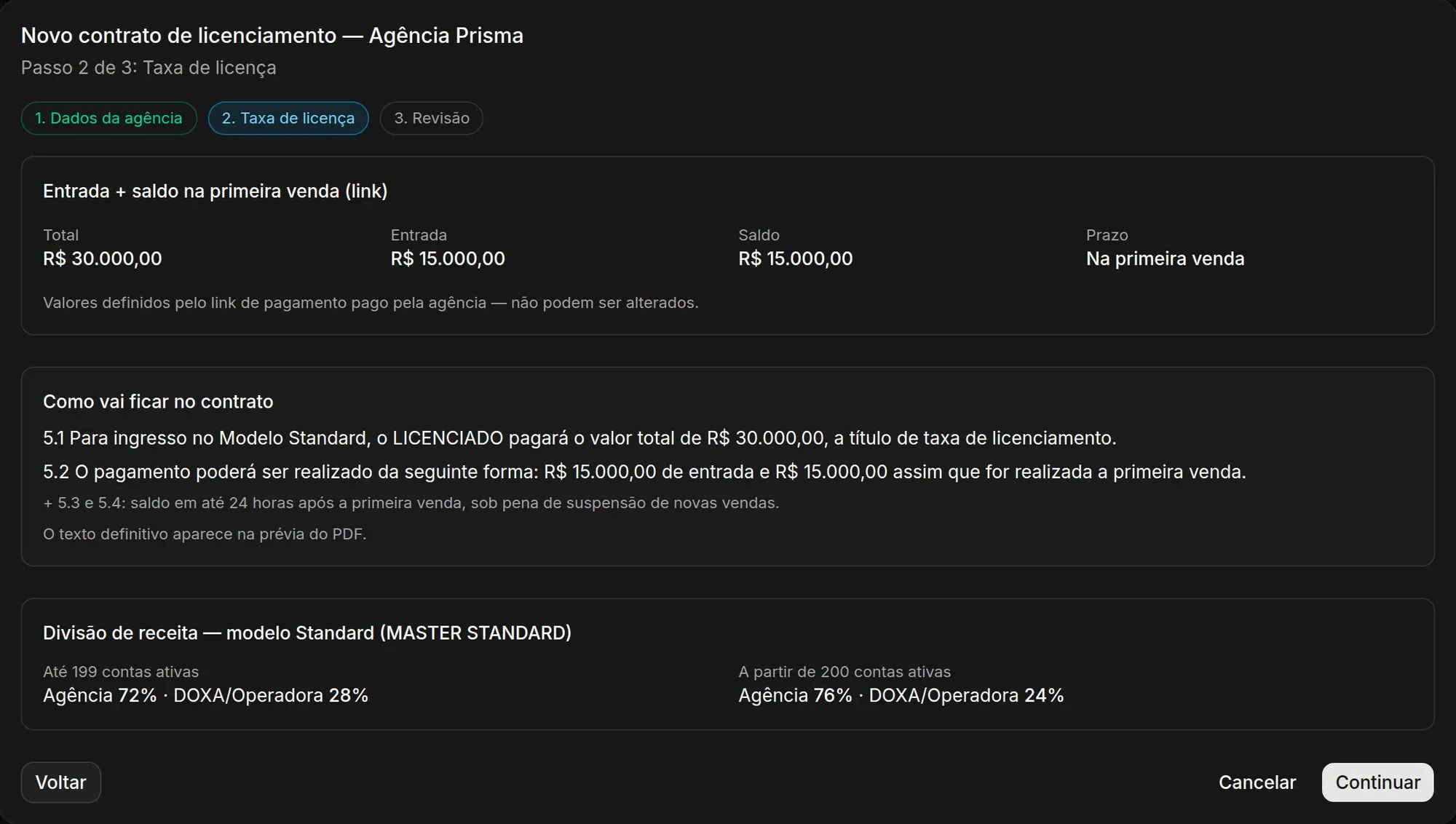
License fee: choose the payment terms. If the agency paid for the license through a payment link, the amounts come from the link and can’t be changed. Otherwise, enter the Total, the Upfront amount and how the Balance will be paid. The What the contract will say box shows the text that goes into the contract.
-
Review: check everything, click Generate preview and read the contract preview.
-
Click Create contract.
The license fee depends on how the agency joined
Section titled “The license fee depends on how the agency joined”The License fee step changes depending on how the agency paid for the license.
Agreed amounts (no payment link). When the agency did not pay through a link, you enter the Total, the Upfront amount and how the Balance will be paid. That is the first image in this section.
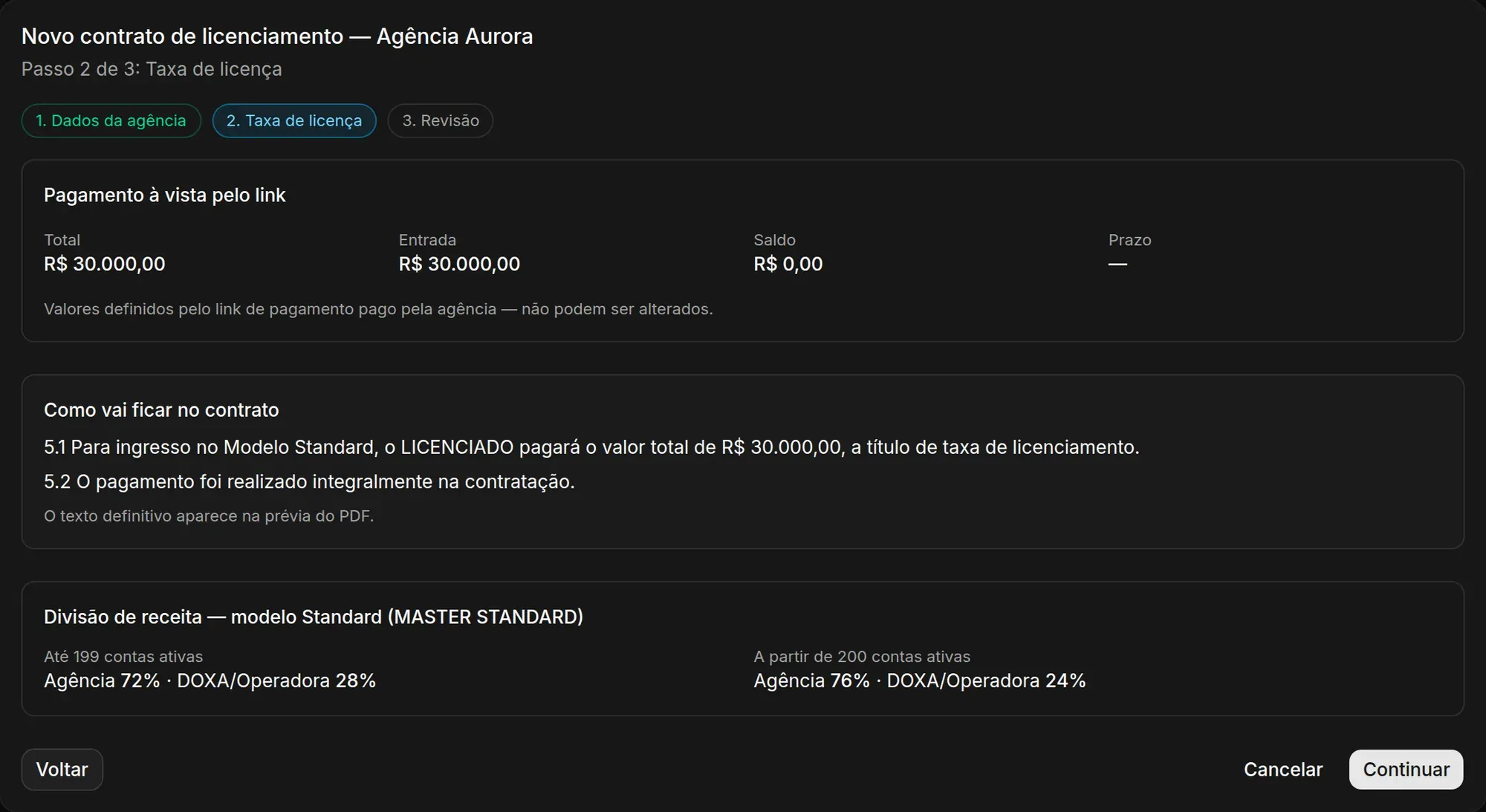
Payment link paid in full. When the agency joined through your payment link at the full price, the Pagamento à vista pelo link (paid in full through the link) box shows the total paid, with no balance. The amounts come from the link and can’t be edited, and the contract states that the payment was made in full at signing.
Payment link with upfront + balance. When the link was a partial sale, the agency paid only the upfront amount. The Entrada + saldo na primeira venda (link) (upfront + balance on the first sale) box shows the Total, the Upfront amount, the Balance and the Due date: on the first sale. These amounts can’t be changed either. The contract says the balance is paid as soon as the agency makes its first sale, within 24 hours, or new sales are suspended.
To see what happens to the agency after its first sale, go to Sales.
The contract is created as a draft. At that point you choose Review and send, Send later or Edit contract.
Edit the contract before sending
Section titled “Edit the contract before sending”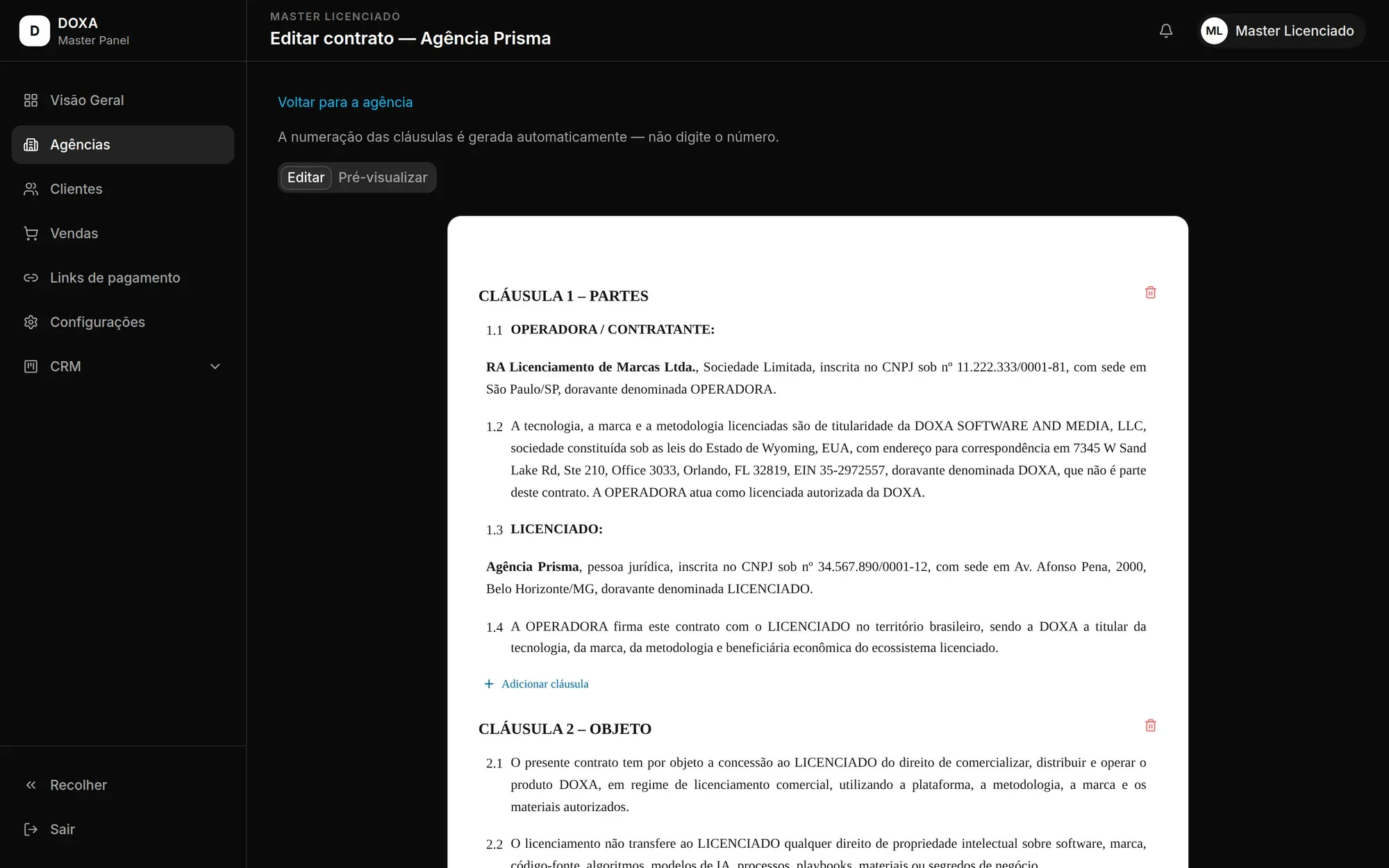
While the contract is a draft, you can adjust its text. Click Edit contract.
- Edit any passage, use Add clause to include a new clause and Remove clause to take one out.
- Clause numbering is automatic. Don’t type the number yourself.
- Use Preview to see the PDF and Save to keep your changes.
- Restore undoes the change to a passage, and Restore all takes the contract back to the original text.
A clause that is referred to in another passage can only be removed after you take the reference out of that passage.
Changes to the warranty clause
Section titled “Changes to the warranty clause”The warranty clause is set by Doxa. If a change touches it, the passage can only be saved with CS approval.
-
On the blocked passage, click Request approval.
-
Under Justification, explain why the change should be approved.
-
Click Send request.
The passage shows Awaiting CS approval until there is an answer, and then Approved by CS or Declined by CS, with the CS note.
Send and sign
Section titled “Send and sign”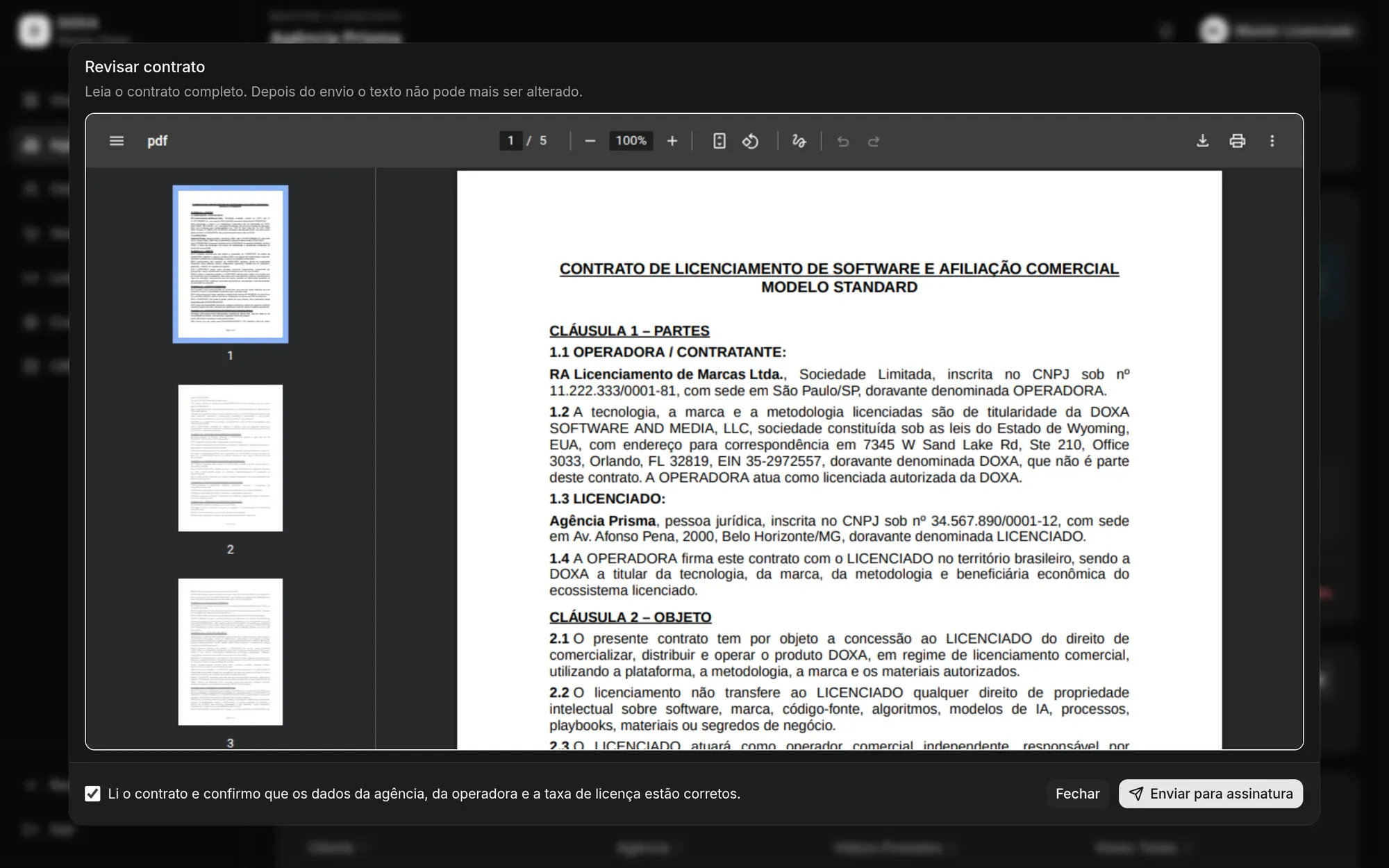
-
Click Review contract and read the full contract.
-
Check the box confirming that the agency details, the operator details and the license fee are correct.
-
Click Send for signature.
-
Click Sign now to sign. The agency can only sign after you have signed.
After you sign, the dashboard shows Waiting for the agency to sign. If the email with the link doesn’t reach the agency, click Copy agency link and send the link to them.
When both parties have signed, the card shows Contract signed. Click Download signed contract to keep the PDF.
Cancel a contract
Section titled “Cancel a contract”On the contract card, click Cancel contract and then Confirm cancellation. This can’t be undone.
If a contract was canceled or declined, click Create new contract to start over.