

Generate scripts and clips
How to request a video with your clone, from the theme to the finished video, and how to mark it as posted.
A clip is a short video shot by your clone. You pick the theme, the AI writes the scripts, you choose one, check the voice, and the clone shoots it. To request clips, you need an approved clone. See Create your clone.
Request a clip
Section titled “Request a clip”-
In the menu, open Clips and click Shoot a new video. The same button appears on the Dashboard.
-
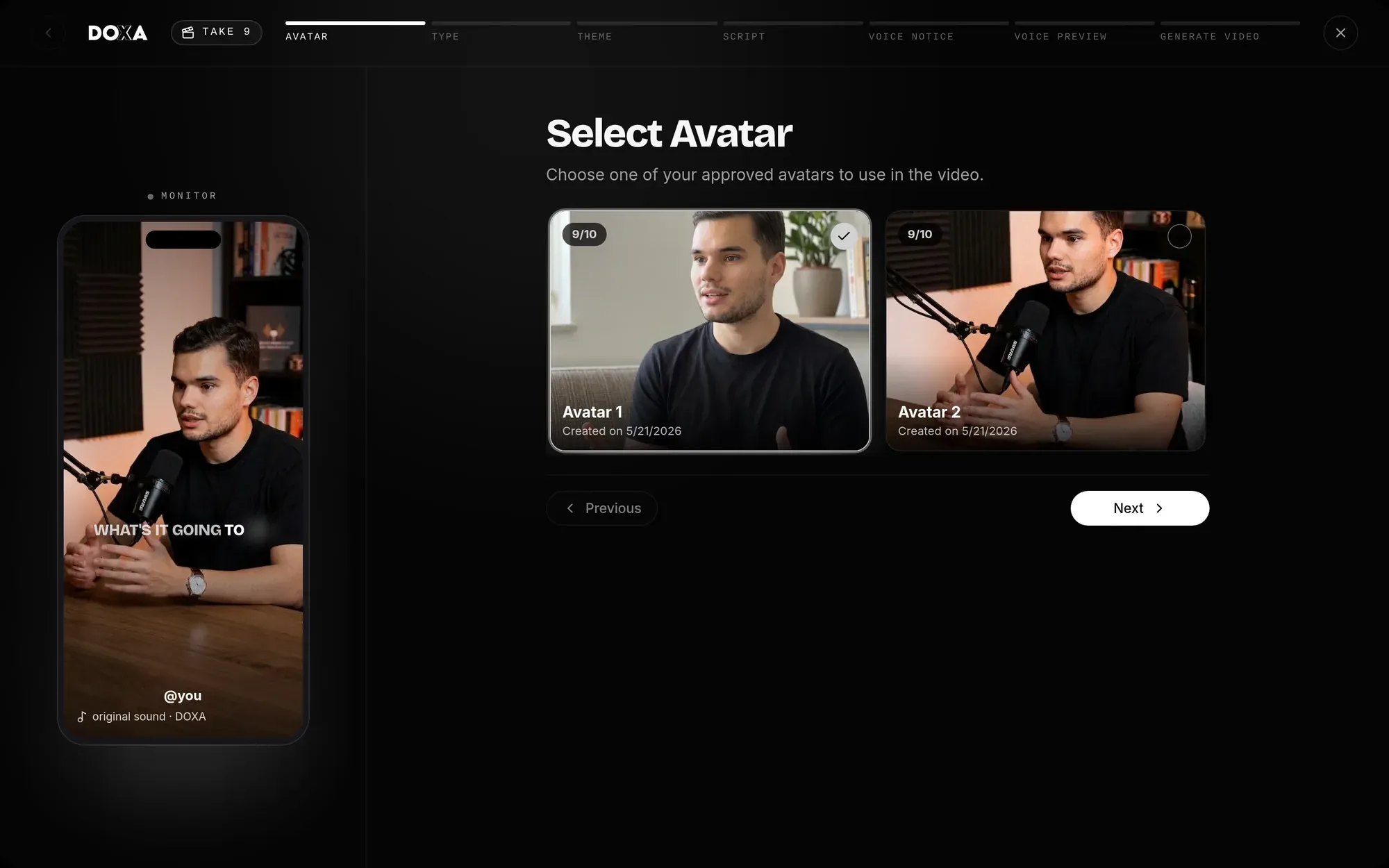
In Select Avatar, choose the clone that will appear in the video and click Next.
-
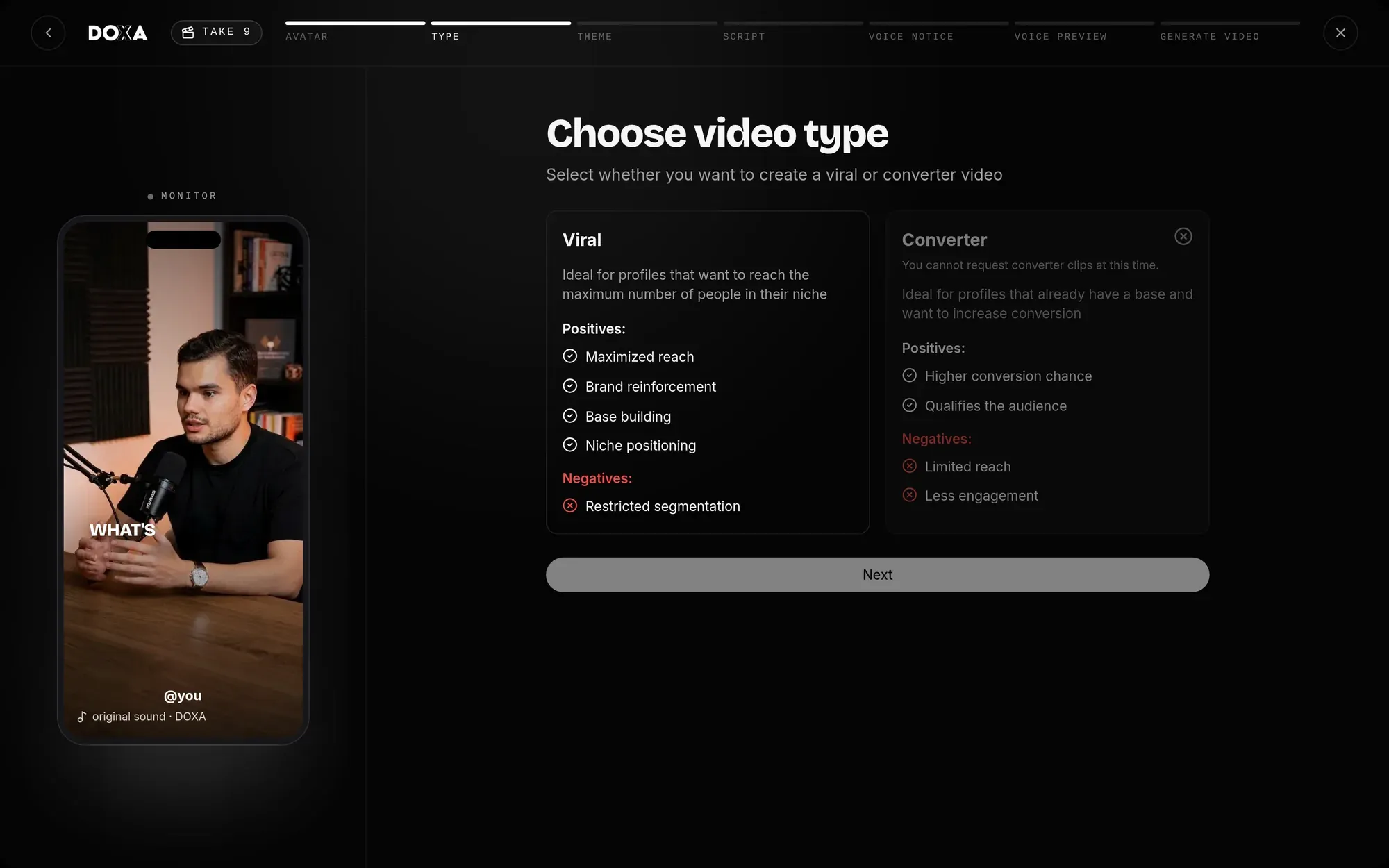
In Choose video type, choose:
- Viral: to reach as many people in your niche as possible.
- Converter: for profiles that already have an audience and want to sell more. Describe what you offer in How does your product solve the user’s pain?. Converter videos don’t count toward the guarantee. This option isn’t always available: when it’s locked, the notice appears on the card itself.
Click Next.
-
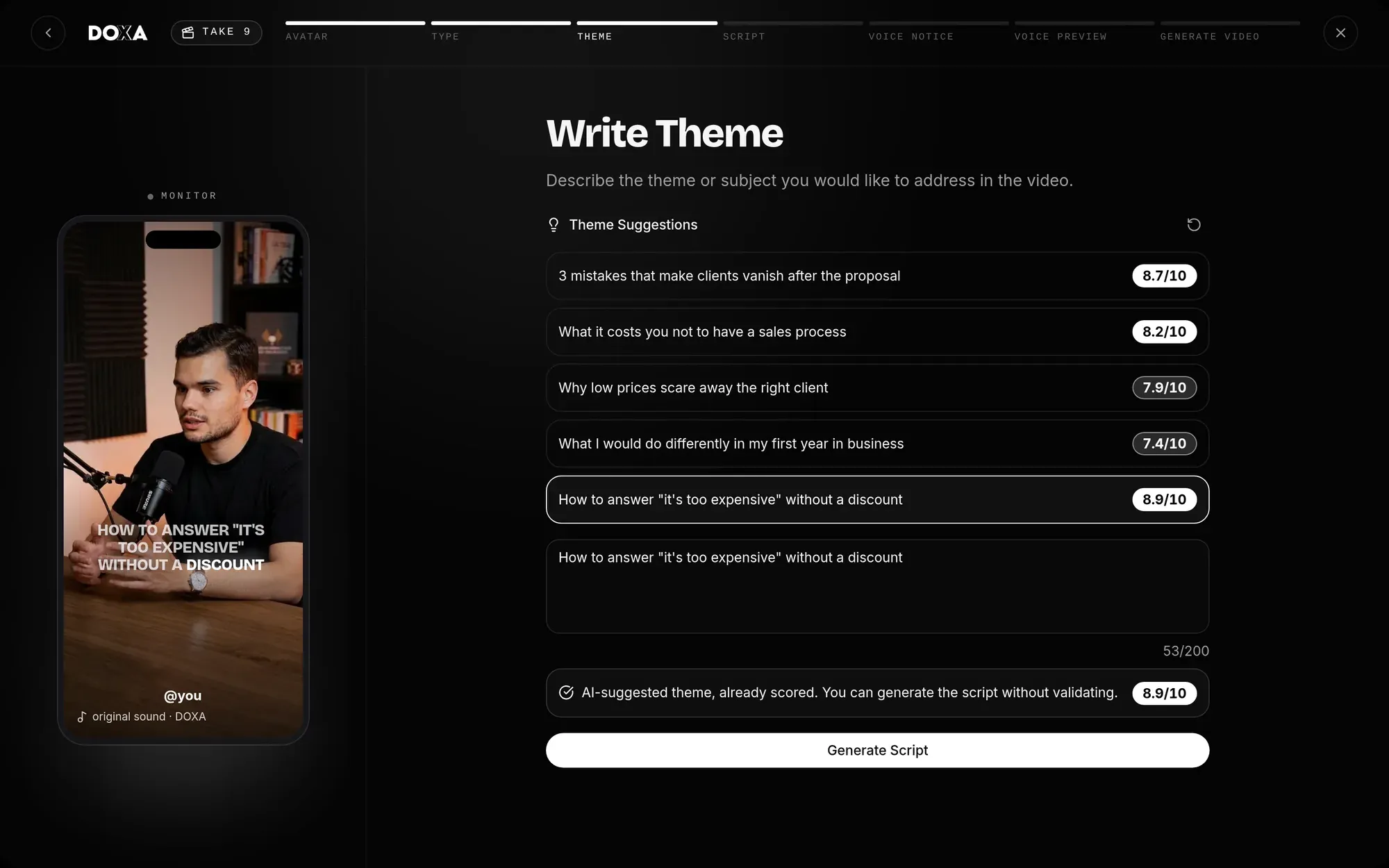
In Write Theme, pick one of the Theme Suggestions or write your own theme. See How the theme score works. Once the theme is approved, click Generate Script.
-
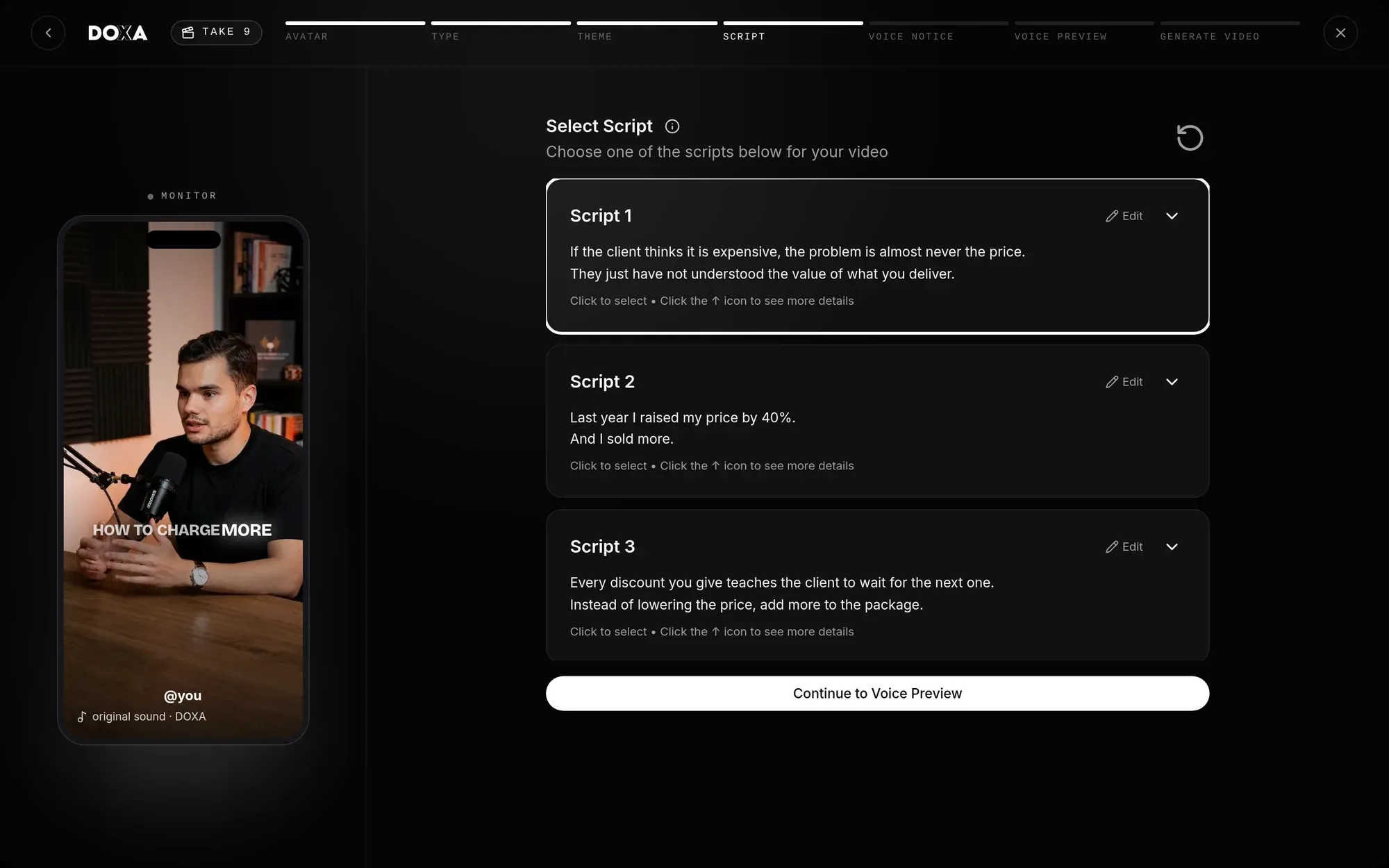
In Select Script, read the scripts the AI wrote and pick one. If you don’t like any of them, click Don’t like the scripts? Generate new ones. Then click Continue to Voice Preview.
-
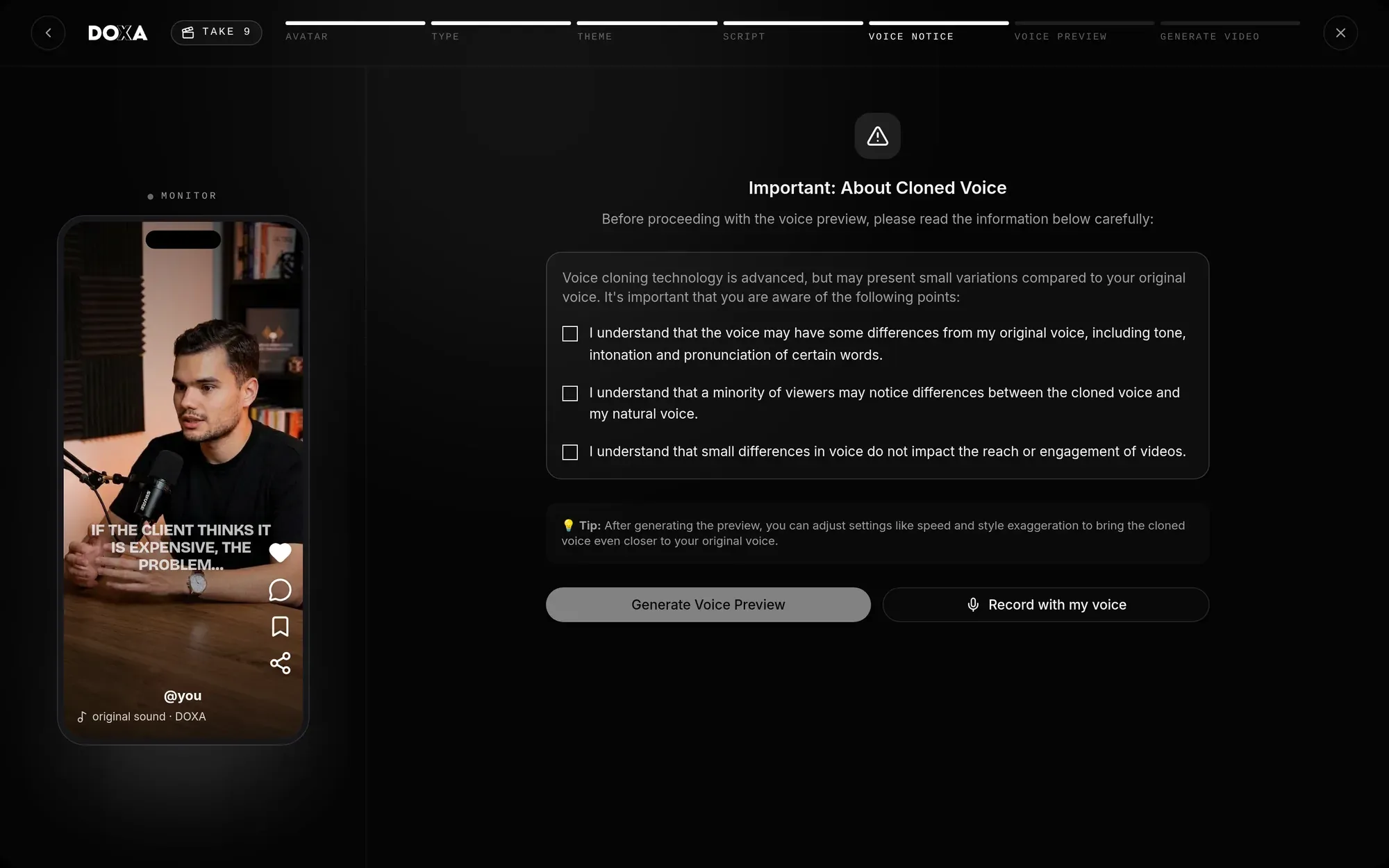
In Important: About Cloned Voice, read the notices and tick the three confirmations. Then choose:
- Generate Voice Preview, to hear the script in your clone’s voice; or
- Record with my voice, to record the video’s audio yourself. See Record with your own voice.
-
In Voice Preview, listen to the result. If you want, adjust Speed, Style exaggeration, Stability, and Similarity and click Apply changes and generate again. When you’re happy, click Confirm and Create.
-
Done: the clone starts shooting. You can close the window. To follow along, click Follow in Clips.
How the theme score works
Section titled “How the theme score works”Each theme gets a score from 0 to 10, given by the AI based on reach, curiosity, and relevance to your audience. Only themes with the minimum score move on to the script.
- Suggestion with a high enough score: you see the message AI-suggested theme, already scored. You can generate the script without validating. You can click Generate Script right away.
- Theme you wrote, or a suggestion you changed: click Validate Theme. The Theme Evaluation shows the score for each criterion, the reason, and similar theme suggestions. The theme must have at least 10 characters.
- Suggestion with a low score: adjust the text and validate again, or pick another suggestion.
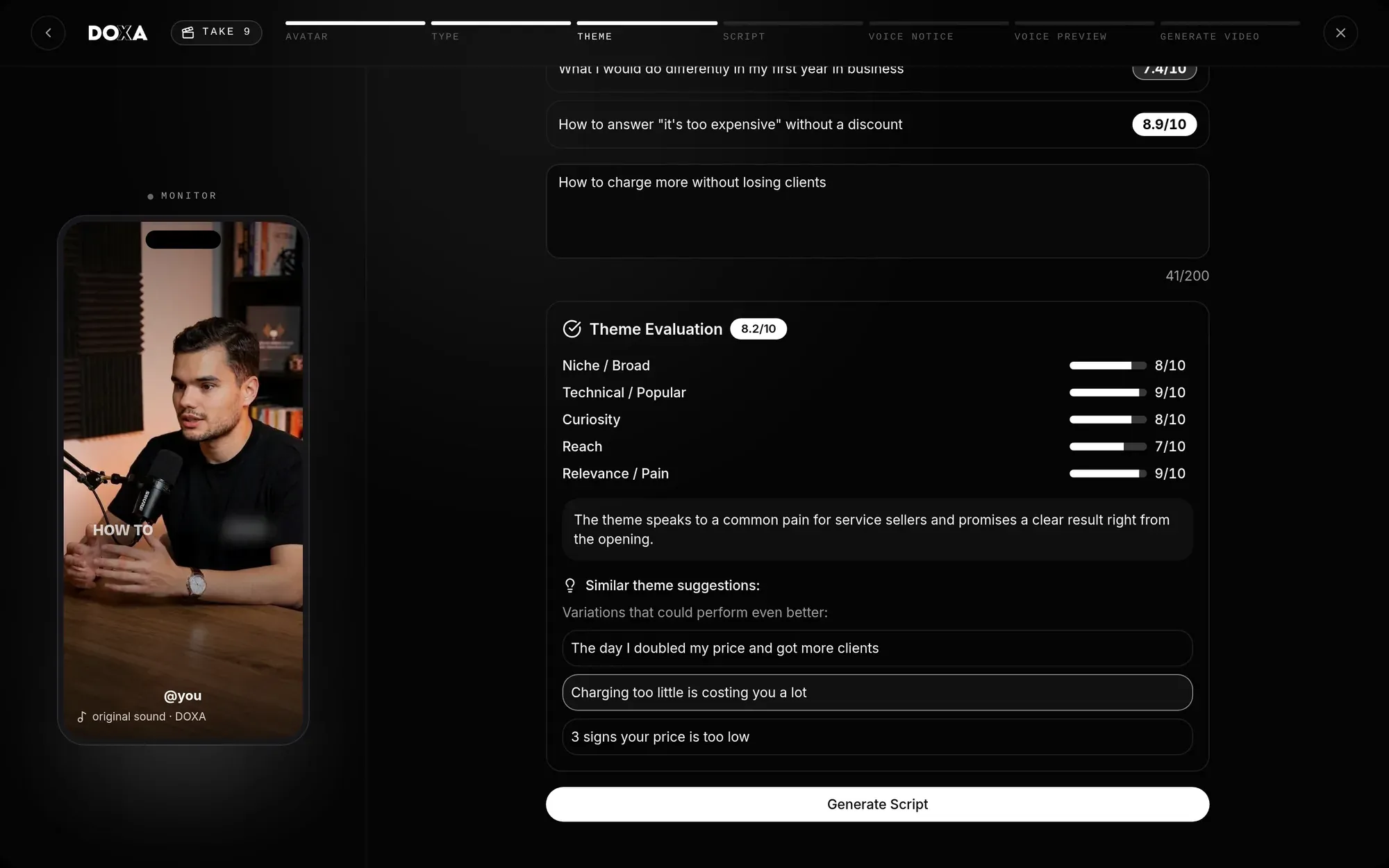
Validation and script generation take up to 1 minute. The screen shows which step the AI is on. For other ideas, click Get new suggestions.
Record with your own voice
Section titled “Record with your own voice”Instead of using the clone’s voice, you can record the video’s audio by reading the script. The video still shows your clone.
-
In Important: About Cloned Voice, click Record with my voice. In Voice Preview, the same option appears as I prefer to record with my own voice.
-
In Read the script out loud, read the tips in How to say each part and click Turn on the microphone. If your browser asks, allow microphone access.
-
Stay silent for 3 seconds while Doxa measures the background noise.
-
Click Start recording and read the script shown on screen, at your own pace, to the last line. The highlight follows your reading. If it gets lost, tap the sentence you’re reading. When you finish, click I’m done.
-
In Listen to your recording, check the audio. Click Use this recording or Record again.
Record in a quiet place, with the device about a hand’s width from your mouth, without Bluetooth headphones. If the recording has no voice or is too short or too long, Doxa asks you to record again. Clips made this way show the Recorded by you badge.
Use a script from the Script Generator
Section titled “Use a script from the Script Generator”You can also start from the script:
-
In the menu, open Script Generator.
-
Write an idea, even a rough one, or pick one of the Hot ideas. Click Write scripts.
-
In Pick the angle, choose one of the themes the AI found.
-
Pick one of the scripts and click Use this script.
-
The clip request opens with the theme and script already chosen. Continue from choosing the clone and the voice.
Follow and post
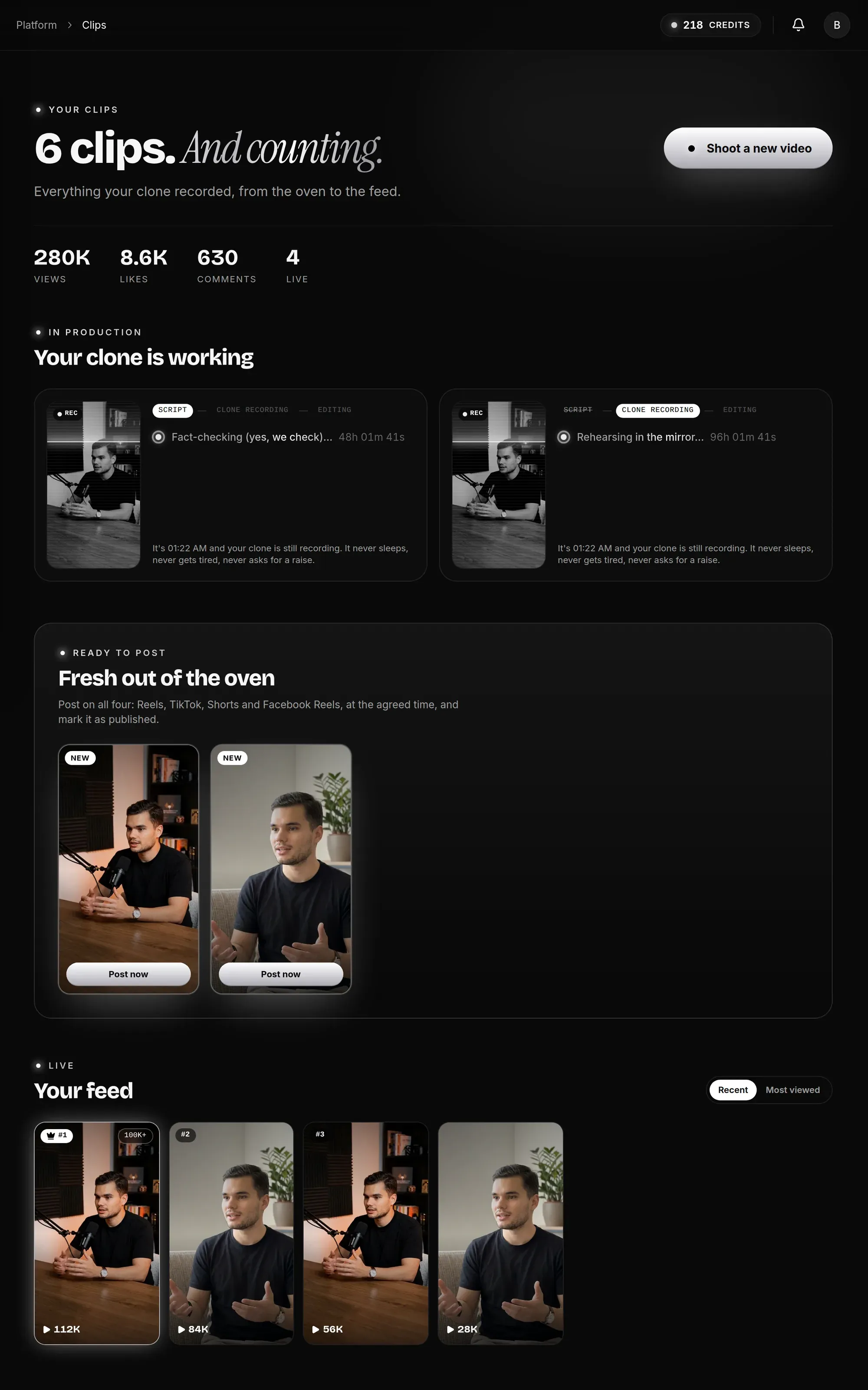
Section titled “Follow and post”In Clips, your videos appear in three groups:
- In production: the clone is working. The video goes through Script, Clone recording, and Editing.
- Ready to post: the video is finished. Click it to open it.
- Live: the videos you have already marked as posted, with their views.
To post a finished video:
-
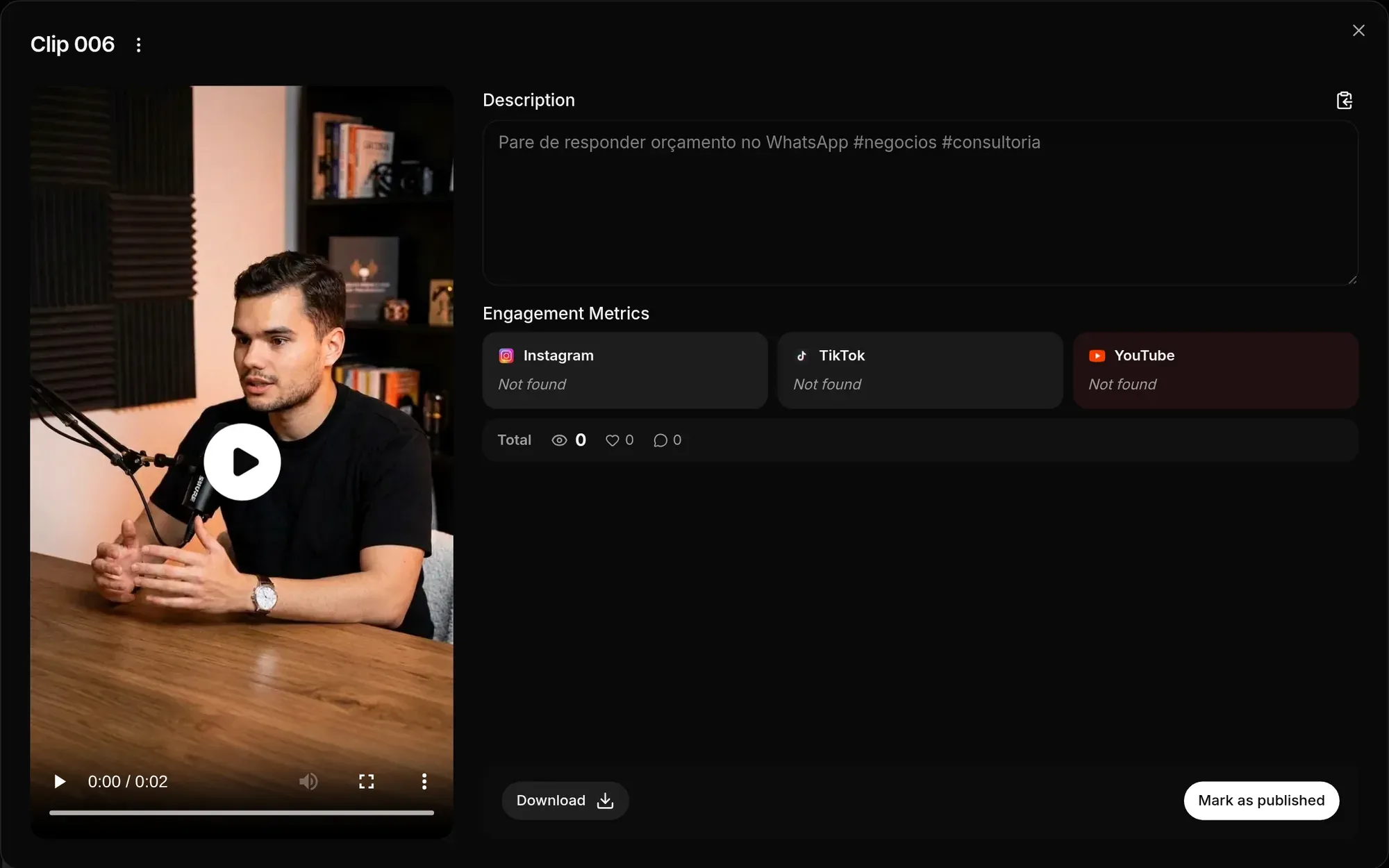
Click the video under Ready to post and use Download to save the file.
-
Publish the video on your social media.
-
Go back to the video in Doxa, click Mark as published, paste the post link for each network requested, and click Confirm.
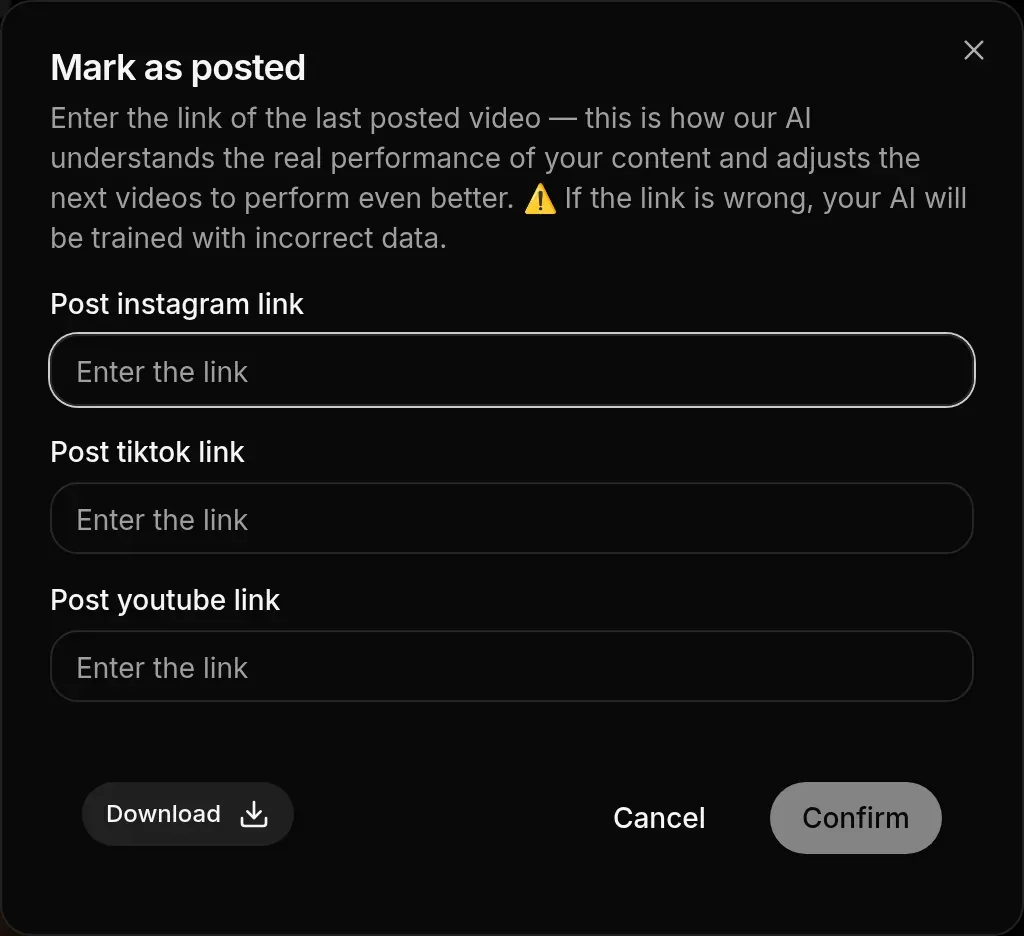
After posting, you can fix the links in Edit post URLs and update the Engagement Metrics with Refresh.
If you don’t like a finished video, open the three-dot menu next to the title, click Disapprove, and explain what needs to improve. Rejecting a clip uses credits. See How credits work.
When you can’t request a clip
Section titled “When you can’t request a clip”Doxa tells you why when a request can’t be made. The most common cases:
- A finished clip not yet posted: mark the previous clip as posted before requesting another one. Click View pending clip to open it.
- Not enough credits: see How credits work.
- Expired plan: renew your plan to continue.
- Outside service hours: requests are accepted from Monday at 6 a.m. to Friday at 9 p.m.
- Clone not yet approved: wait for our team’s review.
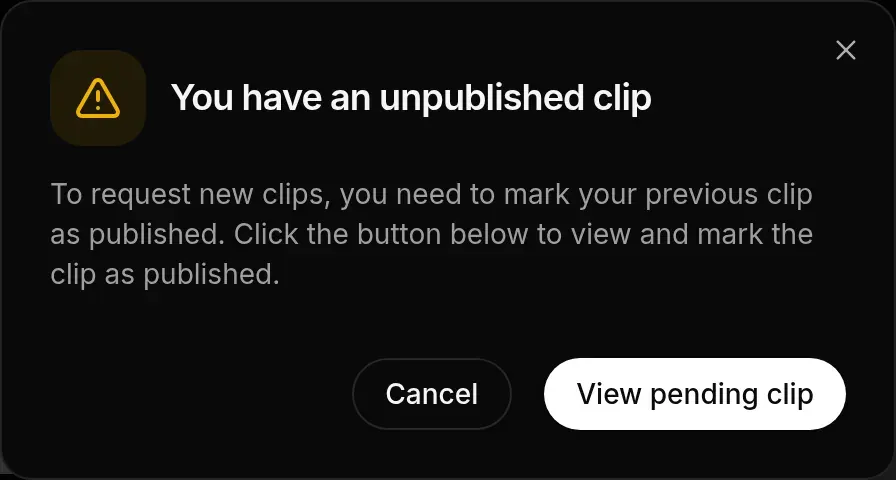
If something goes wrong when sending the request, no credit is charged. Try again and, if the problem continues, talk to CS.