

Create your clone
How to upload the three photos and the voice that make your clone, and what happens next.
Your clone is your AI version: it has your face and your voice and shoots the videos for you. To create it, you upload three photos of yourself and choose the voice. It takes a few minutes and is split into steps: Requirements, Photos, Processing, Preview, and Voice.
Before you start
Section titled “Before you start”Take three photos of yourself, wearing the same clothes and with the same lighting:
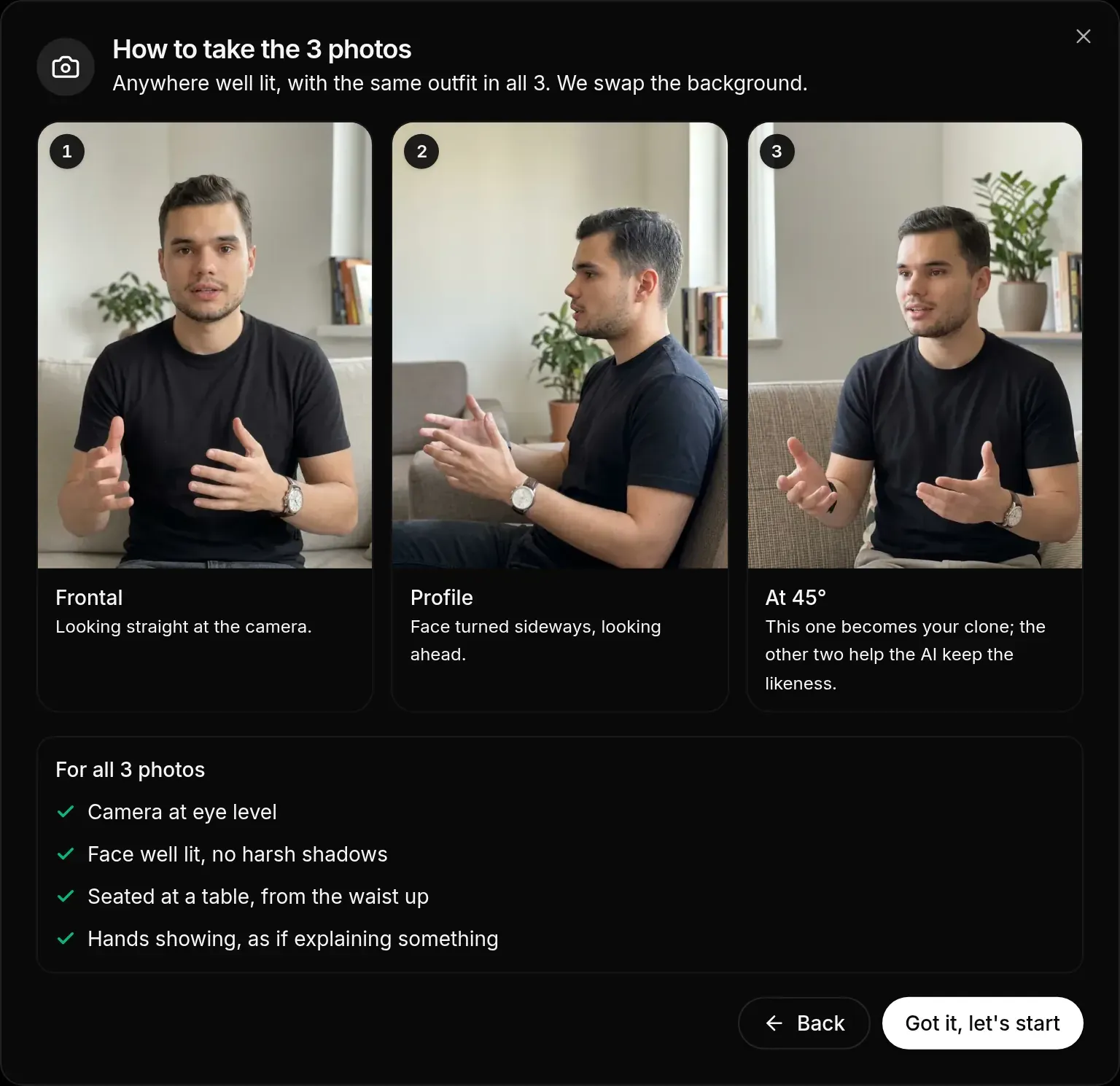
- Facing the camera, looking straight at it.
- In profile, with your face turned to the side.
- At 45°, with your body and face turned together to the same side, like someone talking to a person next to the camera. This is the photo that becomes your clone. The other two help the AI keep the likeness.
In all three photos:
- Keep the camera at eye level.
- Sit at a table, from the waist up.
- Keep your arms and hands visible and relaxed, like someone explaining something.
- Pick a well-lit place, with no harsh shadows on your face.
- Nothing should cover your face. Prescription glasses are fine.
- Use real photos, with no filters or AI editing.
Photos must be JPG, PNG, or WebP, up to 10 MB each. HEIC photos (the iPhone default) are not accepted: convert them to JPG or PNG before uploading.
Step by step
Section titled “Step by step”-
In the menu, open My Clones and click Create my clone. If you already have a clone, the button is called Create another clone.
-
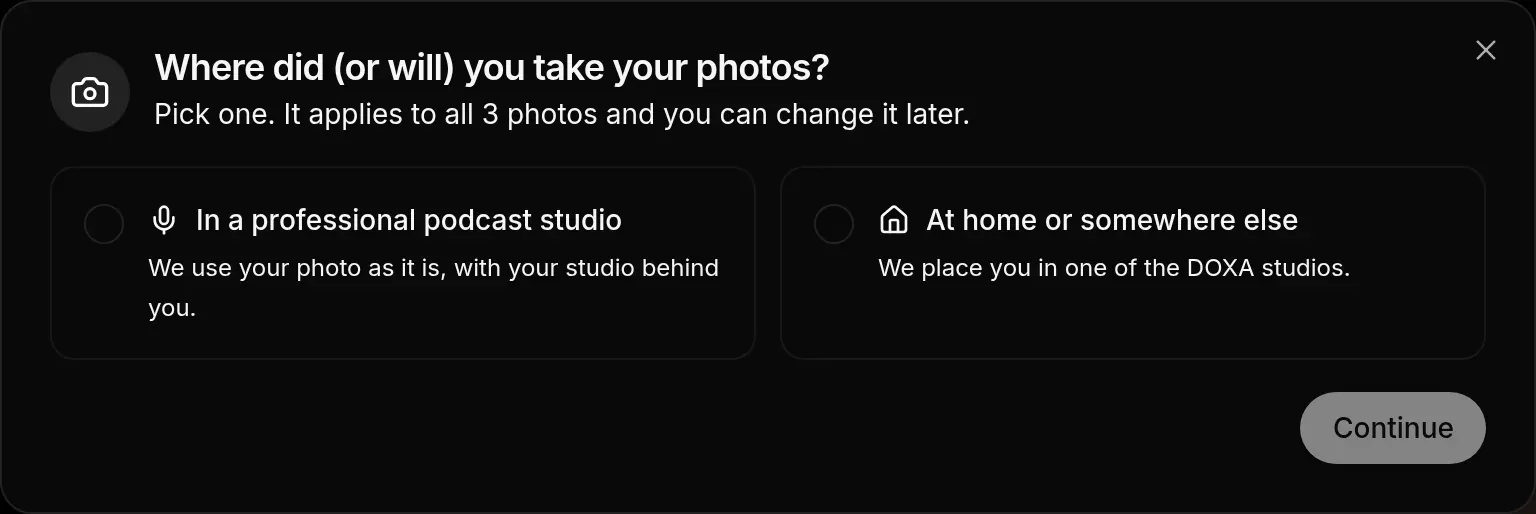
Answer Where did (or will) you take your photos?:
- In a professional podcast studio: we use your photo as it is, with your studio in the background. In the photos, keep the microphone visible and the studio in the background.
- At home or somewhere else: the AI places you in one of the DOXA studios, which you choose later on.
Click Continue, read the How to take the 3 photos guide, and click Got it, let’s start. You can change this choice later, in the photos step, under Change.
-
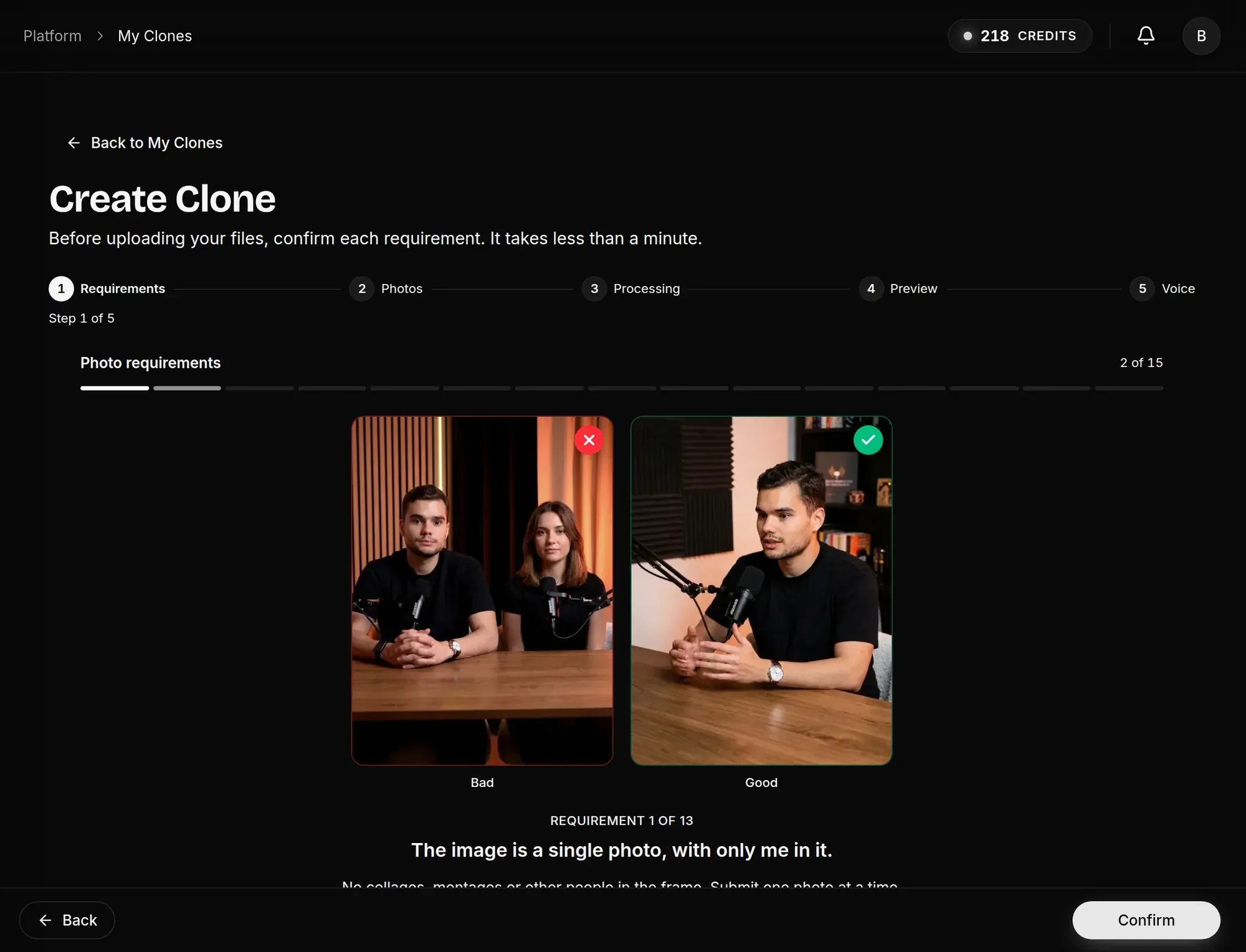
In the Requirements step, click Start and confirm each requirement for the 45° photo with Confirm. Each requirement shows a bad and a good example. At the end, click I understand.
-
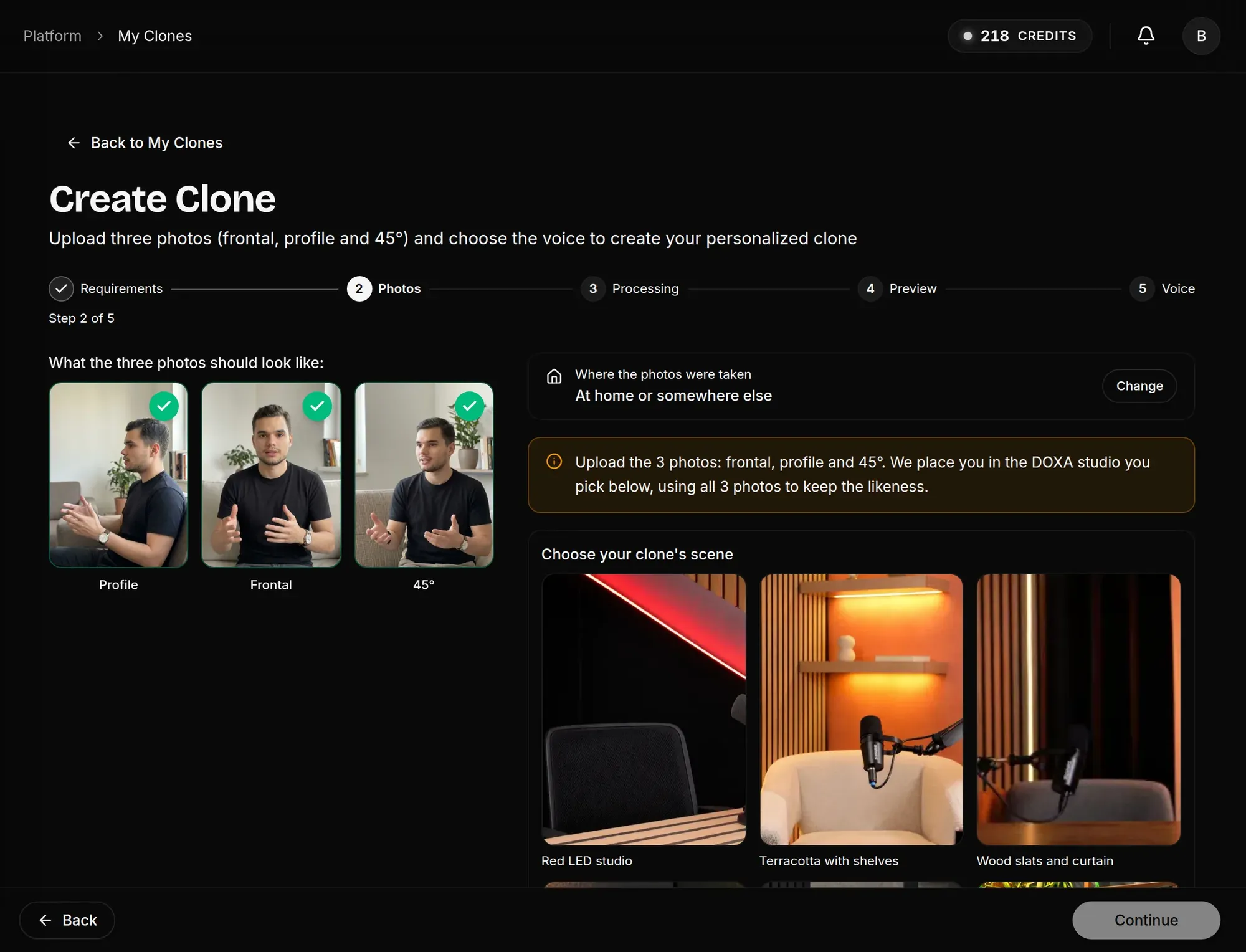
In the Photos step, upload the Frontal photo, the Profile photo, and the 45° photo (becomes the clone). If you chose At home or somewhere else, also pick a scene under Choose your clone’s scene. Then click Continue.
-
In the Processing step, the AI checks whether the 45° photo meets the requirements. If you picked a scene, it also places you in the chosen studio, which takes 2 to 4 minutes. Do not close the window during this step.
-
In the Preview step, compare your photo with the version that will become the clone. If you like it, click Continue. If not, click Upload another 45° photo.
-
In the Voice step, choose your clone’s voice:
- Use an existing voice from my account: reuses the voice of another clone of yours.
- Upload a new audio: upload about 5 minutes of audio talking about your business, naturally and without filler words. Confirm the audio requirements before uploading. The audio must be MP3, M4A, WAV, OGG, or FLAC, up to 20 MB.
If your account has a professional voice, it is used automatically and you don’t need to choose.
-
Click Create clone. You go back to My Clones, where the new clone appears.
If the photo is not approved
Section titled “If the photo is not approved”When the 45° photo doesn’t meet a requirement, you see the message Your photo needs adjustments before continuing: with a list of what needs to change. You have these options:
- Improve Clone: available when you chose At home or somewhere else. The AI tries to fix the points listed while keeping you the same, for example clearing the table or adjusting the lighting or posture. It takes about 2 minutes and can be used once per photo.
- Upload another 45° photo: replaces the photo and runs the check again.
After you create it
Section titled “After you create it”The clone goes through production and a review by our team before it becomes available. This usually takes up to 48 hours. In My Clones, each clone shows its status:
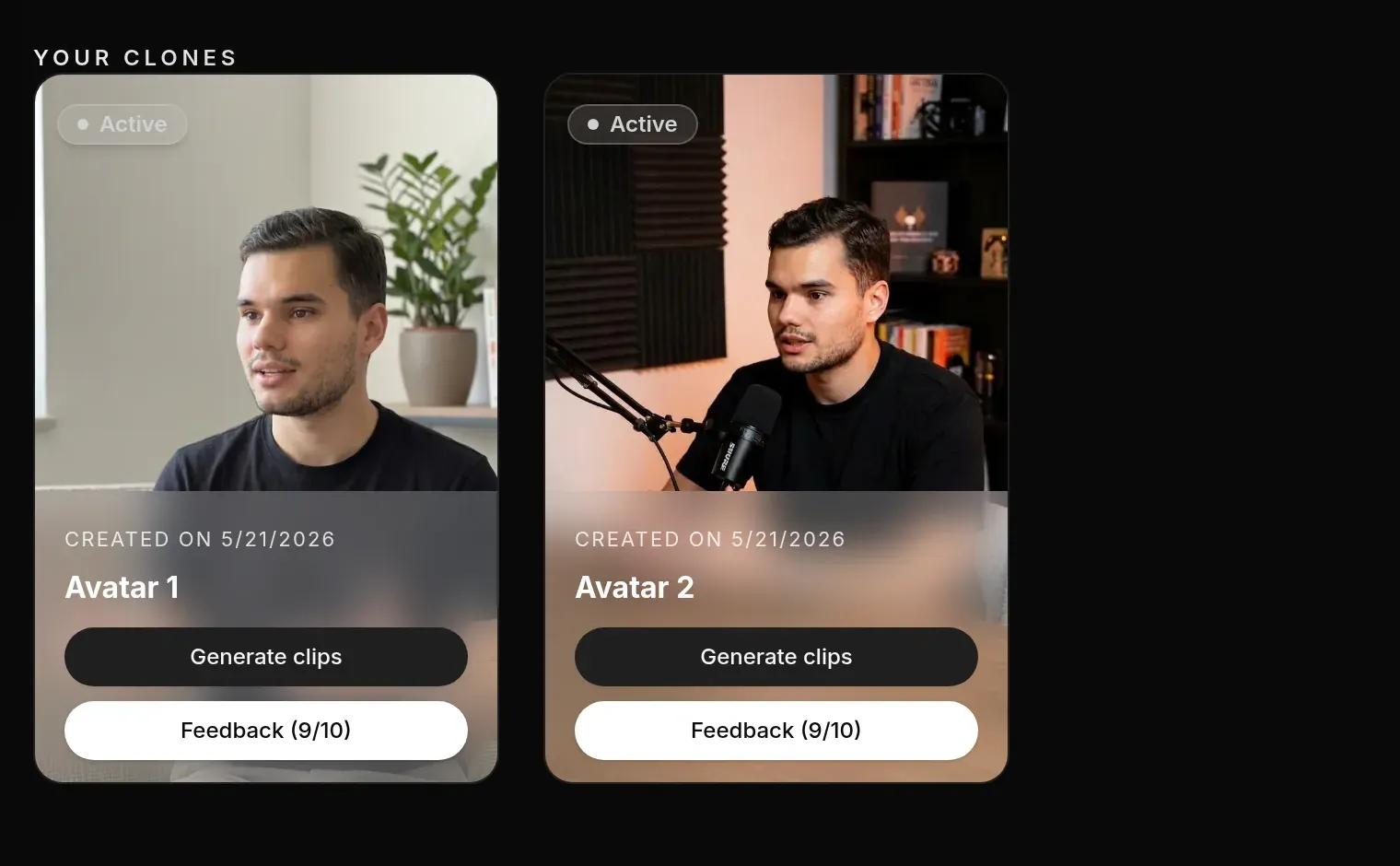
- In production: the clone is still being prepared.
- Voice in preparation: the clone’s voice is still being prepared.
- Active: the clone is ready. Click Shoot with my clone to generate your first video.
- Rejected: the clone did not pass the review. Create a new one with other photos or talk to CS.
- Deactivated: our team deactivated the clone. The reason appears on the card.
How many clones you can create depends on your plan. To change the audio of a clone you already created, talk to CS.
Next step: Generate scripts and clips.