

Home screen
What each figure on the Home screen shows and how to use the shortcuts to sell.
The Home screen is the first one you see when you open the dashboard. It sums up your agency’s sales and has shortcuts to generate contracts and payment links.
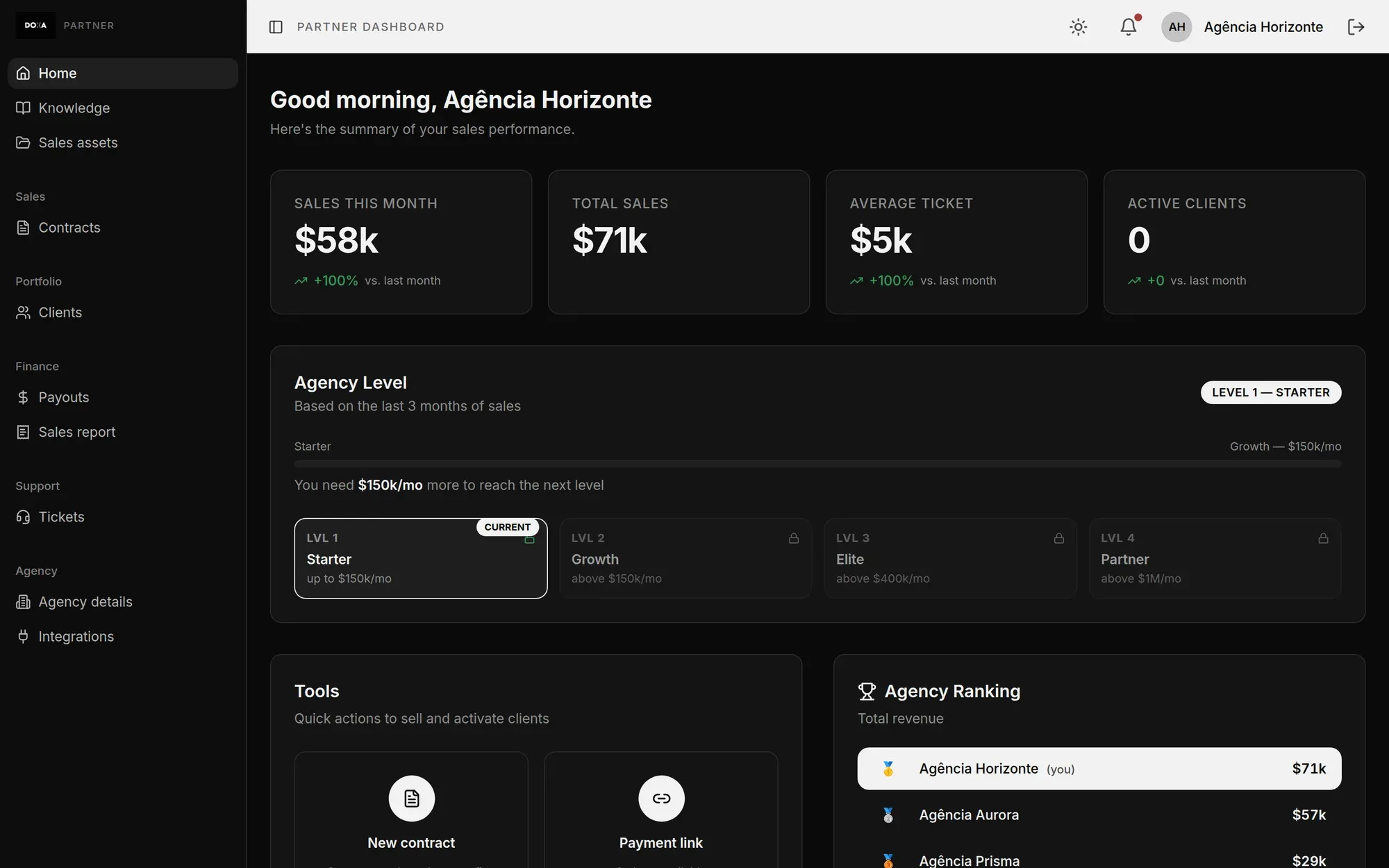
Sales figures
Section titled “Sales figures”The cards at the top show your agency’s figures:
- Sales this month: how much the agency sold in the current month. Below it, the change compared with the previous month (vs. last month).
- Total sales: the sum of all of the agency’s sales.
- Average ticket: the average value of each sale in the current month, also compared with the previous month.
Values are shortened for quick reading. The exact value of each sale is in the contract.
Agency level
Section titled “Agency level”The Agency Level card shows which level your agency is at. The level is based on the monthly average of sales over the last 3 full months:
- Starter: up to $150k a month.
- Growth: above $150k a month.
- Elite: above $400k a month.
- Partner: above $1M a month.
The progress bar shows how much more you need to sell per month to reach the next level. Hover over a level to see its sales range and benefits.
The Tools card has the shortcuts to sell. It only shows up for people with access to Contracts.
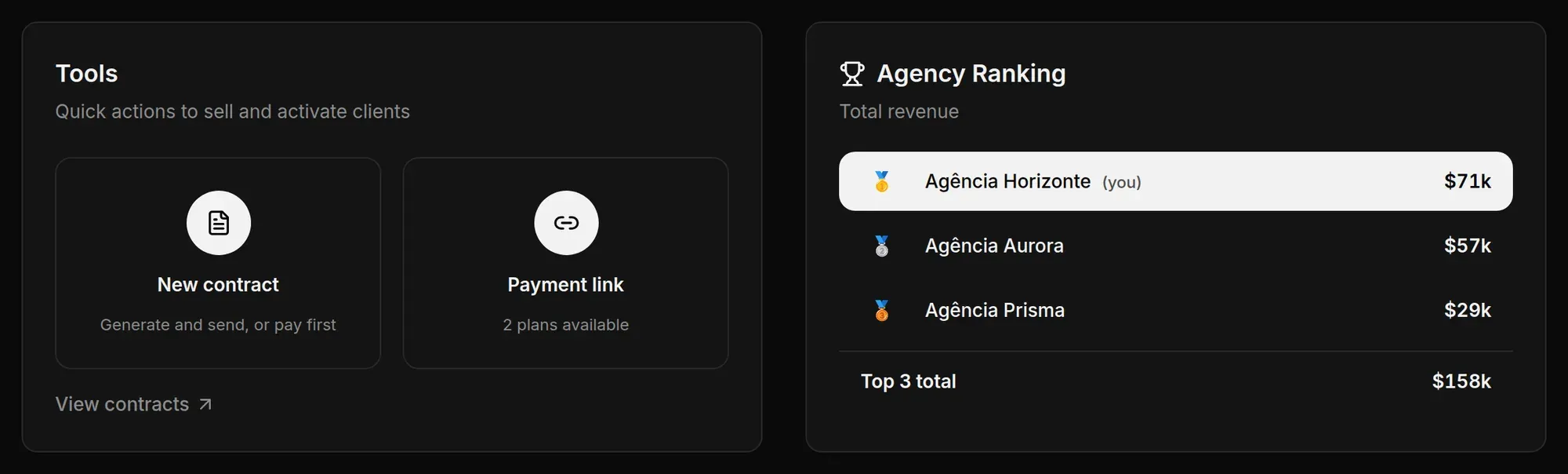
- New contract: opens the same form as the contracts screen. See how to fill it in at Contracts and payment links.
- Payment link: opens the ready-made plan links and the links you created. See Payment links.
- View contracts: takes you to the full list of contracts.
If your agency is going through onboarding, contracts and payment links unlock after your onboarding call. Until then, the card shows Continue onboarding.
Agency ranking
Section titled “Agency ranking”The Agency Ranking shows the 3 agencies with the highest Total revenue. When your agency is one of them, its row is highlighted. Below, Top 3 total adds up the revenue of the three.