

Clients
How to follow your portfolio and see in detail how each client is using Doxa.
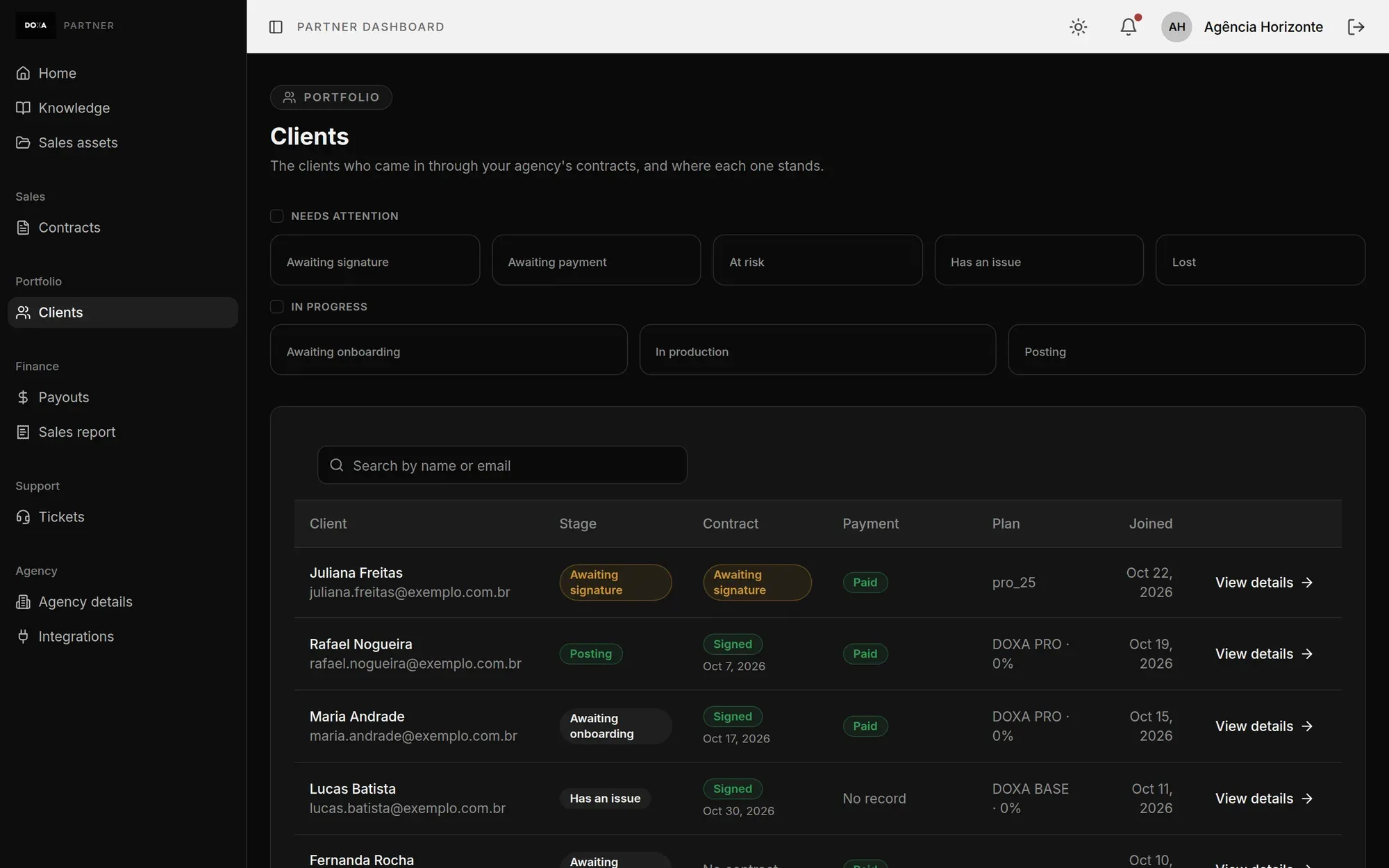
The Clients screen, in the Portfolio group of the menu, lists the clients who came in through your agency’s contracts and shows where each one stands.
How a client gets on the list
Section titled “How a client gets on the list”A client shows up here as soon as a sale from your agency comes in. Their access to the platform is released from the contracts screen, once the contract has both signature and payment. See the step-by-step in Contracts and payment links.
The client list
Section titled “The client list”Each row shows:
- Client: name and email.
- Stage: where the client is right now (see below).
- Contract: Signed, with the date, Awaiting signature or Paid, no contract. The last one shows up when the client paid through a payment link and has no contract yet. That is pending work for your agency.
- Payment: Paid, or how much is still left and the date of the next charge. When there is no charge on record, it shows No record.
- Plan: the contract’s plan and discount.
- Joined: the date the client came in.
Use Search by name or email to find a client. Click View details to open their details page.
Client stages
Section titled “Client stages”Stages come in two groups, which you also use as a filter at the top of the screen.
Needs attention
- Awaiting signature: the client’s contract has not been signed yet.
- Awaiting payment: the contract is signed, but part of the amount is still unpaid.
- At risk: the client has published clips before, but nothing in more than 7 days.
- Has an issue: the client was flagged as having an issue.
- Lost: the client was flagged as lost.
In progress
- Awaiting onboarding: the client has not answered the onboarding on the platform yet.
- In production: the client answered the onboarding but has not published any clip yet.
- Posting: the client published a clip in the last 7 days.
You can select more than one stage in the filter. The list shows the clients in all the selected stages. With no stage selected, it shows everyone.
Client details page
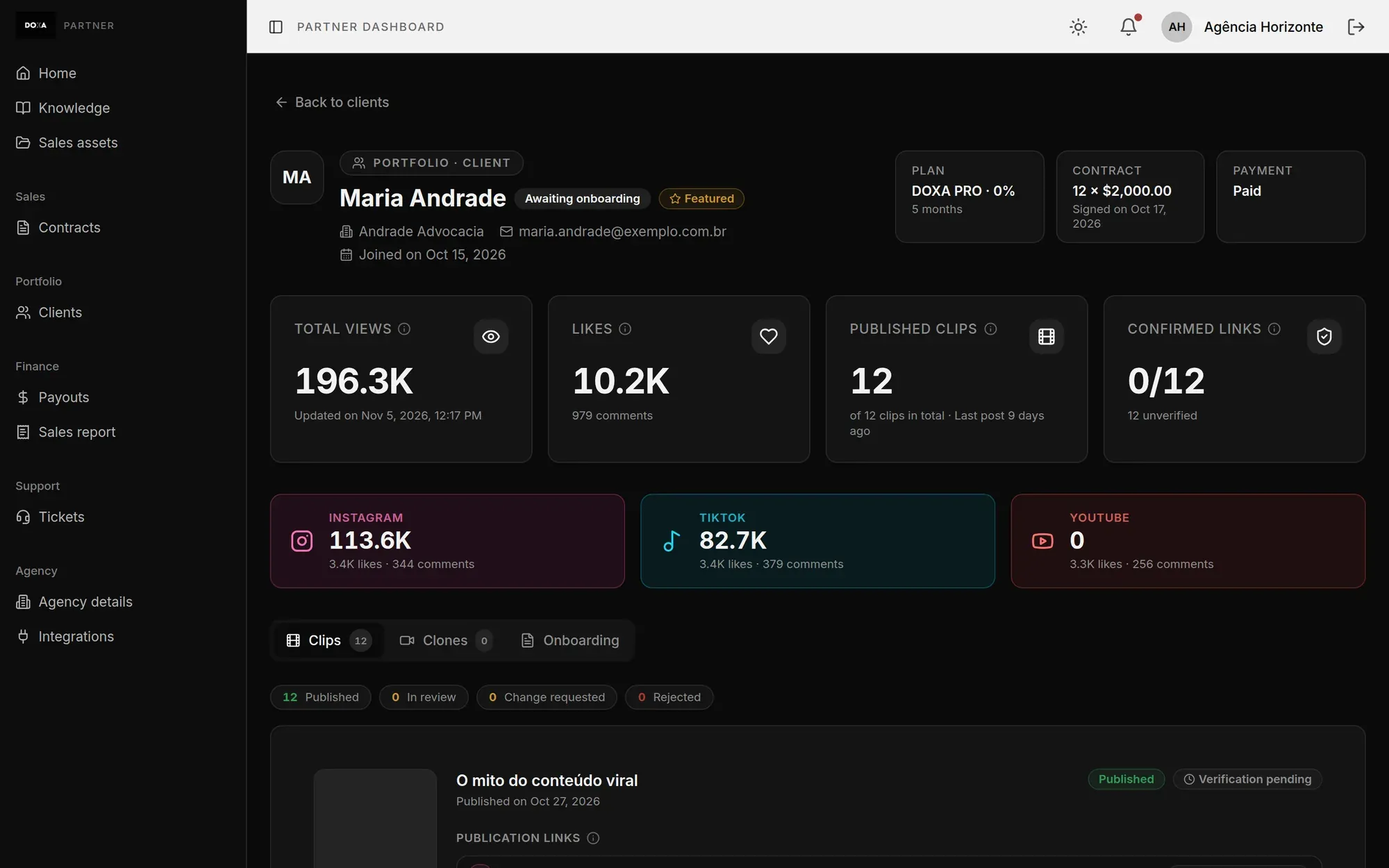
Section titled “Client details page”The details page brings together everything the client has done on the platform. To go back, click Back to clients.
Summary
Section titled “Summary”At the top you see the stage, email, phone, company and join date. The Plan, Contract and Payment cards repeat what the list shows. If the client is marked as Featured, that shows next to the name.
Right below are the content figures:
- Total views and Likes: the total across the client’s networks, with the date of the last update.
- Published clips: how many clips have been published out of the total, and when the last post was.
- Confirmed links: how many publication links really belong to one of the client’s profiles.
Below them, views are broken down by network, such as Instagram, TikTok and YouTube.
Clip published on the wrong profile
Section titled “Clip published on the wrong profile”If a clip was published on a profile that is not the one the client registered in onboarding, the page shows a warning at the top. Those clips are left out of the figures until the link is fixed. Click View clips to see which ones.
- Clips: all of the client’s clips, with each one’s status (Published, In review, Change requested or Rejected), the script, the publication links and the metrics.
- Clones: the clones the client requested, with their status, the reviewer’s score and comment, and the professional voice when there is one.
- Onboarding: the onboarding answers, the score from the automatic review of those answers (0 to 100), the registered social profiles and the notes about the client.